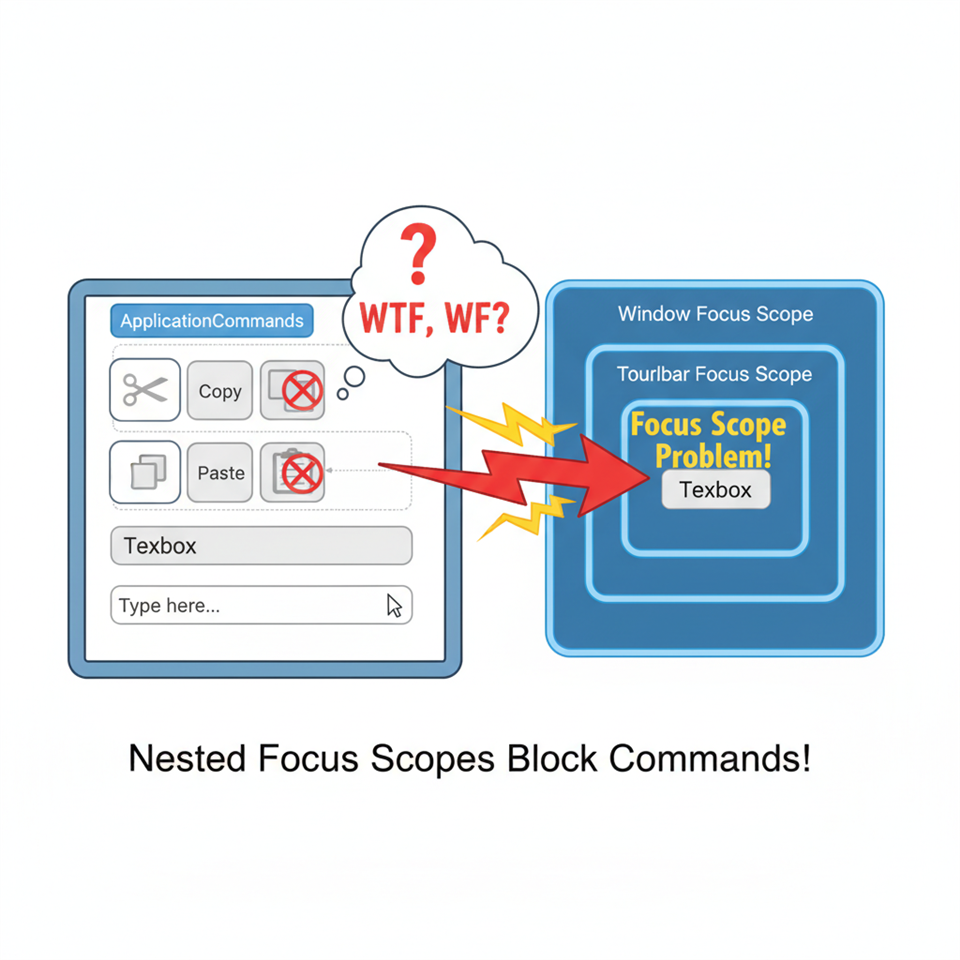
Here's a frustrating WPF scenario — you use the ApplicationCommands class to add Cut, Copy and Paste commands to toolbar and then put a TextBox on another toolbar. Click in the TextBox and the commands remain disabled. WTF, WPF?
The problem is with focus scopes. Your window is a focus scope and so are any menus or toolbars. This has the desirable property of allowing commands to target the control you were in immediately before invoking the command. You want paste to target the text box you're editing, not the menu item or button you clicked to request the paste.
So far so good. The problem is that the commanding system isn't smart enough to target the control with keyboard focus if it's in a nested focus scope. Remember that the window itself is a focus scope so our TextBox in a ToolBar (also a focus scope) is nested and immune to commands from our menu or toolbar.
Here's a simple window that demonstrates the problem:
Ignore the PreviewCanExecute handler for now. If you run this window and click in the main TextBox the paste button and menu item are enabled. Click in the toolbar TextBox and pasting isn't an option. Well, Ctrl-V still works and there's a context menu but you know what I mean.
The problem can be fixed by adding a command binding for ApplicationCommands.Paste and handling the PreviewCanExecute event:
When the window loads we're making note of the focus scopes for the toolbar and menu. Then when PreviewCanExecute fires we check to see if the element with the keyboard focus is in a different focus scope (and also that the window doesn't have keyboard focus). We then set the CommandTarget for the menu item and button to the element that has keyboard focus.
A handler isn't required for CanExecute as the command will take care of this with respect to the new CommandTarget.
Run the window again and you'll see that the paste button is enabled for both of the TextBox controls. When you click the button (or menu item) our PreviewCanExecute handler ignores the new keyboard focus and the command is sent to the desired control.
One drawback of this approach is that keyboard focus isn't returned to the TextBox after the command executes. The CommandTarget remains in place so you can keep pasting and the command remains enabled but you lose the visual cue that lets you know where the target is. I haven't figured out a clean approach to this yet. When I do, I'll update this post. Better yet, if you've figured it out leave a comment.
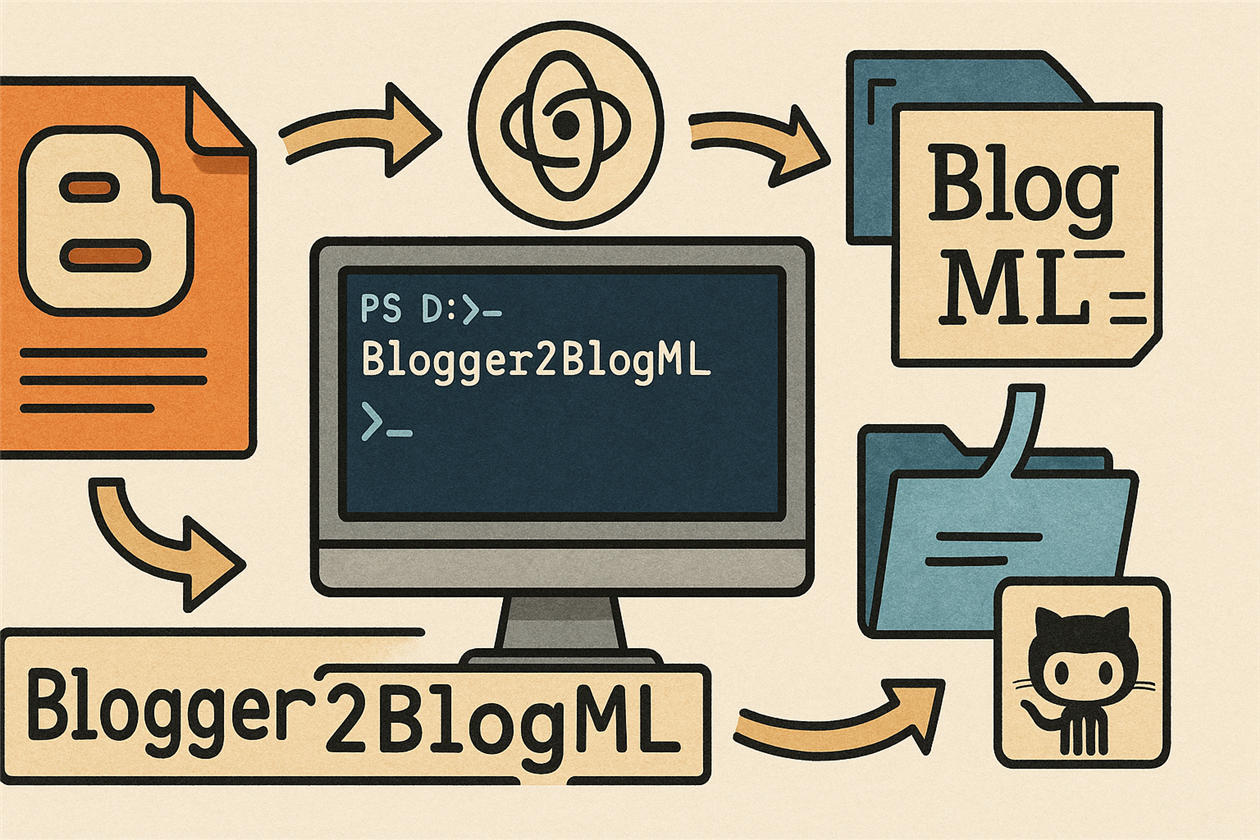
I'm slowly converting a number of blogs from Blogger to BlogEngine.NET. The least fun part is dealing with the Blogger export file. For this blog I used a Powershell script but had problems with comments not exporting correctly and it was quite painful to fix everything up. Blogger allows you to export a copy of your blog using ATOM, however BlogEngine.NET (and other tools) speak BlogML.
I've just released a command line tool that takes the ATOM format Blogger export and converts it to BlogML. You can download Blogger2BlogML from GitHub. The tool uses .NET 4.0 (client profile) so you'll need to install this if you don't already have it. If you give Blogger2BlogML a try let me know how you get on.
I've just released a small update for my ESRI Shapefile Reader project on GitHub. The only change is a patch from SolutionMania that fixes a problem when the shapefile name is also a reserved name in the metadata database. The patch escapes the name preventing an exception from being thrown.
Catfood.Shapefile.dll is a .NET 2.0 forward only parser for reading an ESRI Shapefile. Download 1.20 from GitHub.
The Volume Shadow Copy Service (VSS) takes a snapshot of an NTFS drive at a point in time. The clever thing about VSS is that it doesn't copy anything — it starts with the assumption that nothing has changed and then keeps track of every change to the snapshot so only changes need to be stored.
From Windows Vista on it's possible to mount a shadow copy as a drive letter or share. ShadowTask is a command line tool that creates a VSS copy, mounts it as a drive and then runs a program or batch file. For example:
ShadowTask C V dostuff.bat
Creates a copy of C:, mounts it as V: and then runs dostuff.bat.
Let's say you want to copy a locked file — maybe some outlook personal folders. Dostuff.bat could contain:
The ZIP contains both 32 and 64 bit versions of the tool. You must use the version that matches your platform. ShadowTask supports Windows Vista and 7. XP doesn't support mounting a shadow copy so ShadowCopy will fail if you try to use it on XP. ShadowCopy must run as admin (elevated).
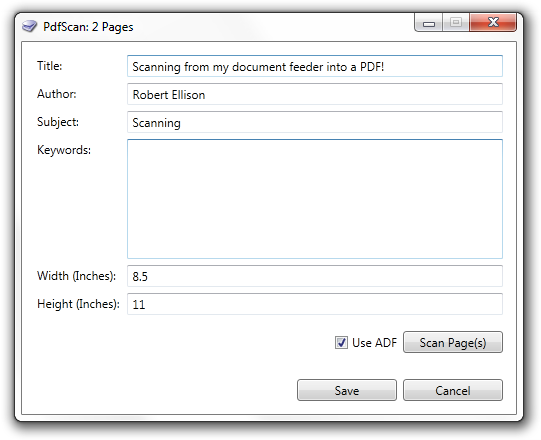
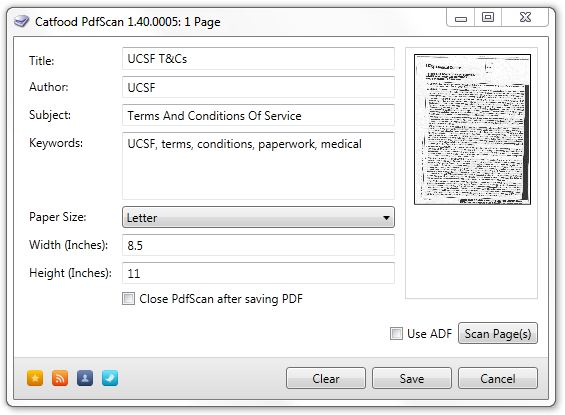
PdfScan is a simple tool for scanning pages into a PDF file. You can scan single pages from a flatbed scanner or several pages from a document feeder. The page size applies to both the scan and the page(s) added to the PDF.
I wrote PdfScan because I know I'm going to be scanning a lot of documents over the next couple of weeks. Previously I used a tool called ScanToPDF from O Imaging but their licensing pissed me off so much that I'd rather waste time reinventing the wheel than pay them for another copy.
This is a beta — it works with my scanner and my documents. There's no installer, so extract the ZIP file and run the EXE to use it. PdfScan requires the .NET 4.0 Framework. If you get an error when you run PdfScan.exe try installing .NET 4 and then run it again.
If enough people use this I'll make it a bit more friendly, add an installer and release it through Catfood. If you like it leave a comment below. If it doesn't work for you leave a comment or email me and I'll try to help.
(Update September 12, 2010: I've tided PdfScan up and released it through Catfood Software. Download from Catfood PdfScan.)
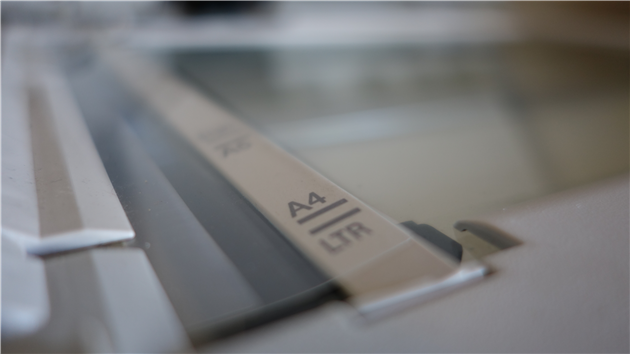
I've been going nuts trying to scan from the document feeder on my Canon imageClass MF4150. Everything worked as expected from the flatbed, no dice trying to persuade the ADF to kick in. I found some sample code but it was oriented towards devices that can detect when a document is available in the feeder. Evidently my Canon doesn't expose this and so needs to be told the source to use.
The way to do this is to set the WIA_DPS_DOCUMENT_HANDLING_SELECT property to FEEDER. You then read WIA_DPS_DOCUMENT_HANDLING_STATUS to check that it's in the right mode and initiate the scan. This did not work for toffee.
After much experimentation I discovered a solution. I had been setting device properties and then setting item properties before requesting the scan. Switching the order - item then device - made everything work.
Here's the function to scan one page:
A few notes — XImage is a type from PDFSharp. I wrote this as part of a PDF scanner that I'll post next so the scanned images are saved and then loaded into an XImage for rendering to the PDF document. The magic numbers come from WiaDef.h in the Platform SDK. If the ADF is out of pages this method sets the return image to null and eats the exception. This is because the function is called repeatedly to scan in pages until the ADF is empty if _adf is true (otherwise it grabs one image from the flatbed).
If you've been banging your head against a wall trying to get WIA to work with a document feeder I hope this helps.
PdfScan is a simple tool for scanning pages into a PDF file. You can scan single pages from a flatbed scanner or several pages from a document feeder. The page size applies to both the scan and the page(s) added to the PDF.
I wrote PdfScan because I know I'm going to be scanning a lot of documents over the next couple of weeks. Previously I used a tool called ScanToPDF from O Imaging but their licensing pissed me off so much that I'd rather waste time reinventing the wheel than pay them for another copy.
This is a beta — it works with my scanner and my documents. There's no installer, so extract the ZIP file and run the EXE to use it. PdfScan requires the .NET 4.0 Framework. If you get an error when you run PdfScan.exe try installing .NET 4 and then run it again.
If enough people use this I'll make it a bit more friendly, add an installer and release it through Catfood. If you like it leave a comment below. If it doesn't work for you leave a comment or email me and I'll try to help.
(Update September 12, 2010: I've tided PdfScan up and released it through Catfood Software. Download from Catfood PdfScan.)
Catfood PdfScan 1.40 is a small bug fix release. PdfScan converts documents to PDFs with the help of a flatbed or automatic document feeder (ADF) scanner.
After floundering a bit with the WPF Dispatcher I've come up with a simple way to make sure an event handler executes on the UI thread without paying the overhead of always invoking a delegate.
This has the benefit (for me at least) of being very easy to remember. Hook up the event handler and then if there's a chance it could be called from a different thread wrap it using the pattern above. It's easier to read than an anonymous delegate and much faster than defining a specific delegate for the event in question.
I haven't tested the various methods to see which is the fastest yet… will get round to this at some point.
When testing out a WPF app on XP I got an unhelpful XamlParseException error report.
I was a little puzzled because I was hooking up error reporting in App.xaml.cs:
My error handler was attempting to create a XAML window to report the error, and evidently this was bombing out as well triggering the good doctor Watson. I added a MessageBox call instead and discovered that the XamlParseException was wrapping a FileFormatException and the stack trace indicated that the problem was with setting the icon for the window. After removing the icon the app started up fine. Weird.
It turns out that WPF chokes on a compressed 256x256 icon on XP and Vista (Windows 7 seems to cope fine). Saving the icon without compression fixes the problem. I use IcoFX and you can set this at Options -> Preferences -> Options -> Compress 256x256 images for Windows Vista. Of course the consequence is that the icon is a couple of hundred kilobytes larger.
I've spent the last day learning how to use OAuth and XAuth to post to Twitter. There are rumblings that Twitter will start to phase out basic authentication later this year, and more importantly you can only get the nice “via...” attribution if you use OAuth (for new apps, old ones are grandfathered in).
I coded up my own OAuth implementation, referring to Twitter Development: The OAuth Specification on Wrox and the OAuthBase.cs class from the oauth project on Google Code. Both are great references, but both fail with multibyte characters. The problem is that each byte needs to be separately escaped. OAuthBase.cs encodes characters as ints rather than breaking out the bytes and the Wrox article incorrectly suggests using Uri.EscapeDataString().
Here's a method to correctly encode parameters for OAuth:
NoEncode chars is a list of the permitted characters:
An impact of this encoding is that spaces must be encoded as %20 rather than plus. I was worried that each space would end up counting as three characters towards the 140 character limit. I tested this and it isn't true, so use HttpUtility.UrlEncode() to calculate the number of characters in the post OAuthUrlEncode() or similar to actually encode post parameter.