As much as I’m looking forward to Daydream VR and trying to train my Google Assistant to swear there is one big problem left with Android that Mountain View should tackle first.
Where the fuck did my icon go Android?
Every so often when I update apps an icon is missing from my home screen. It’s one of sixteen apps that I use frequently enough to have pinned there but I can’t remember what it was until my muscle memory sends my finger flying to the empty square an hour or day later. Until then I’m distracted and can’t focus and scroll helplessly through the recently updated list in Google Play trying to figure out which of the updates is the culprit.
It’s not the first time I’ve been through this so I took a screenshot of my home screen just so I could not go through this again. But Google Photos backed it up and deleted it to save space so it’s somewhere in Drive that I can’t find doing me no good at all. When I figure this out I’m going to borrow my daughter’s instax and keep a hard copy in my wallet.
Google booking me a restaurant and a babysitter at a whim won’t save the time I lose to hunting down missing apps.
It might be fixed in Nougat but I can’t update for an unknown number of months because of device/carrier/manufacturer fragmentation so that’s still Google’s fault.
I have been a HTC loyalist so maybe it’s Sense and not Android in which case sorry Google, I should get mad at HTC instead.
An Echo knockoff and rapturous applause for variable font size in a messaging app. Not much innovation so far this year.
The horrific trend in Inbox and now Allo is machine learning auto reply so you can send something canned and inauthentic instead of actually speaking with people. Zombie Robs might approve but I'm far from convinced.
Updated 2016-05-18 14:12:
Android N looks super cool and I can't wait. The #1 productivity enhancement I'd like to see though is copy and paste icons that look like copy and paste. I do not have a clue currently.
Updated 2016-05-18 14:24:
No headset.
Updated 2016-05-18 14:40:
Android Studio is very nice. Eclipse was painful. I actually like Android Studio more than Xamarin which is saying a lot for a C# leaning person.
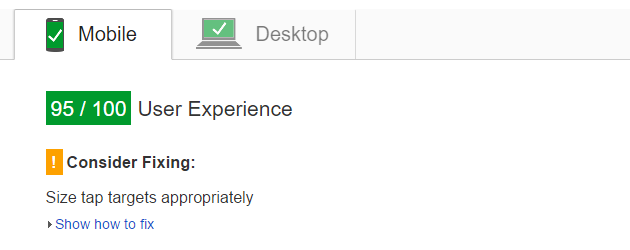
Here's a quick script to automatically monitor your Google PageSpeed Insights desktop and mobile scores for a web page, together with core web vitals (LCP, INP and CLS):
You need a spreadsheet with a tab called results and an API key for PageSpeed Insights and the CrUX API (activate the APIs in the console and create an API key for them, the browser based / JavaScript option). Paste the code above into the script editor for the spreadsheet and add your API key and URLs to monitor. Then just choose triggers from the Resources menu and schedule the monitor function to run once per day.
The script will log the overall PageSpeed score out of 100 for the monitored page. It also logs 75th percentile origin level core web vitals (largest contentful paint (LCP, seconds), interaction to next paint (INP, seconds) and cumulative layout shift (CLS, percent)). If your origin does not have enough data the metric will be omitted. You can change from origin to page level web vitals if you have enough data, just change originLoadingExperience to loadingExperience for PageSpeed Insights and origin to url in the CrUX call.
The results are repeated for desktop and mobile, so your spreadsheet header should be Desktop PSI, Desktop LCP, Desktop INP, Desktop CLS, Mobile PSI, Mobile LCP, Mobile INP, Mobile CLS.
There are a lot of other values returned that you could choose to monitor as well. It would also be easy to extend this to monitor more URLs, or to send you an email if the score drops below a threshold.
Updated May 5, 2019 to use version 5 of the PageSpeed API.
Updated June 13, 2021 to include core web vitals.
Updated October 18, 2025 to use CrUX instead of PageSpeed for core web vitals (Google is removing web vitals from PageSpeed). CrUX might not have device level data for your origin and so the script will now report total aggregate data for both devices if this is the case. I ignore tablet, easy to add if you want it.
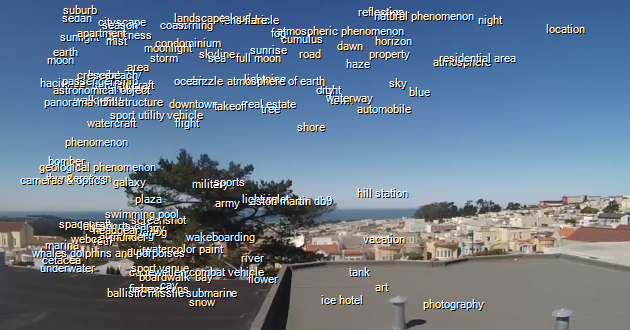
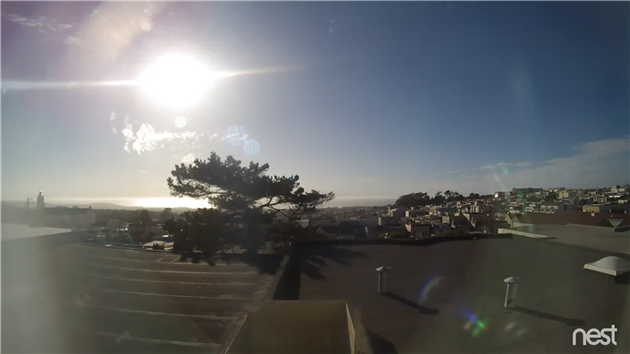
I've been feeding webcam images into the Google Cloud Vision API for a few weeks now so I thought I'd take a look at what it thinks it can see. The image above shows every label returned from the API with my confidence going from the bottom to the top and Google's confidence going from left to right (so the top right hand corner contains labels that we both agree on).
Google is super-confident that it has seen a location. Can't really argue with it there.
It's more confident that it has seen an ice hotel than a sunrise (and it has seen a lot of sunrises at this point). Maybe I need to explore the Outer Sunset more.
Google is 60.96% confident that it has seen a ballistic missile submarine. I suppose that's plausible, I do have an ocean view but it's rather far away and unless there was an emergency blow that didn't make the news I'm going to have to call bullshit on that one. It's 72.66% confident that an Aston Martin DB9 went past which is pretty specific. Possibly a helicopter slung delivery?
Maybe I'm sending basically the same image in too many times and the poor system is going quietly mad and throwing out increasingly desperate guesses. Probably I've just learned that I should use 80%+ as my confidence threshold before triggering an email...
I've struggled for a while with Chromecast. The idea is great. I love using my phone rather than a remote. I like the idea of being able to cast any screen or browser tab in principle (in practice I think I've only done this once). I like the nice curated background pictures and that I could get round to using my own photos one day.
But here is how it works in practice. Fire up app. Select Chromecast icon and watch it go through the motions of connecting. Nothing streams. Reboot Chromecast, phone and router. Hard reset Chromecast and configure from scratch again. Reboot everything some more. Disconnect house from grid for ten minutes and switch off gas mains as well to be on the safe side. Finally, streaming! Repeat.
It's miserable. With both a Chromecast and a Chromecast 2 (which I really hoped might fix the problem). I've been through two different routers and I've tried a bunch of different settings but nothing seems to make the thing work. I even renamed the device to remove spaces.
For a while I considered buying an OnHub. Maybe Google's router would work with Chromecast? But it can't be bothered with Ethernet ports for some reason and so I'd need a new switch and then I'd probably need another power port and how important is John Oliver right now anyway (very)?
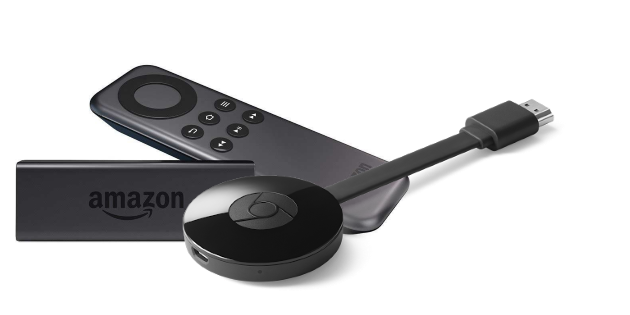
As much as I want Chromecast to work I've binned the wretched thing and bought an Amazon Fire TV Stick. Same basic principle but with apps on the device rather than your phone and a remote control.
I'd rather not have another remote, but it works instantly and without risking an aneurysm. It's also available with voice control which lets you both search for programs and trigger Alexa (my typical morning is asking Alexa for a flash briefing and then sobbing quietly when a daughter yells 'Alexa, stop... Alexa, play Gangnam Style').
My only gripe so far is that the voice search doesn't search inside non-Amazon apps (Netflix, HBO, etc).
Nest (previously DropCam) can email you when it detects activity but that gets boring quickly. How about an email only when it sees something totally new?
The script below downloads a frame from a web cam and then calls the Google Cloud Vision API to label features. It keeps a record of everything that has previously been seen and only sends an email when a new feature is detected. You could easily tweak this to email on a specific feature (i.e. every time your dog is spotted), or to count the number of times a feature appears. I'm using a Nest cam but any security camera that has a publicly visible image download URL will work.
There is a bit of setup to get this working. Create a new Apps Script project in Google Drive and paste the code above in. You'll need to provide you own values for the three variables at the top.
OAuthCreds is the contents of the JSON format private key file for a Google Developer Console project. Go to the console, create a new project and enable the Cloud Vision API. You'll also need to enable billing (more on this below) - a trial account will work fine for this. Once the API is enabled create a service account under Credentials and download the JSON file. Just paste the contents of this into the script.
That's the hard part over. Now enter the URL of the image to monitor (see this post for instructions on finding this for a Nest / DropCam device) as MonitorImageUrl and your email address for SendEmailTo.
One last thing - follow the instructions here to reference the OAuth2 for Apps Script library.
Once this is all done run the script (the main() function) and authorize it. You should get an email with a picture attached and a list of the labels detected together with a confidence score from 0 to 1. If this doesn't happen check the logs (under the View menu).
You can now schedule the script to run repeatedly (Resources -> Current project's triggers). You get up to 1,000 units a month for free so once an hour should be safe. If you need more frequent updates check the Cloud Vision pricing guide for details.
After a few runs you should only get an email when something new is detected. If you're seeing too many wild guesses then add a filter on the score to exclude low confidence features.
Enjoy, and leave a comment if you have problems (or modify this in interesting ways).
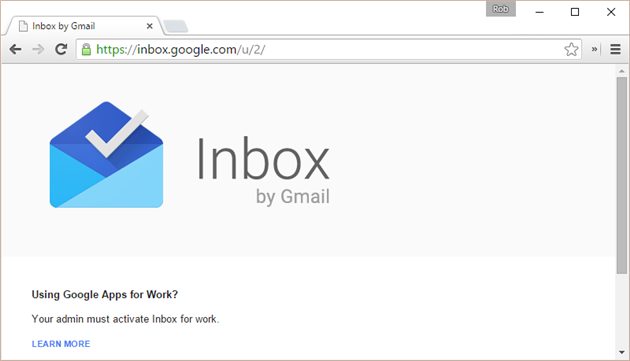
Google is generally pretty good about managing multiple accounts but sometimes you get completely stuck. One example is Google Inbox where your primary account is Google Apps for Work without Inbox enabled. You just get a screen saying that Inbox needs to be activated and no option to switch to another account.
There is a fix, and this sometimes works for other products as well. In the URL (https://inbox.google.com/u/0/) there is a user number. Change the 0 to 1 (or maybe 2, 3, etc depending on the number of accounts) and you can get Inbox up and running again.
One case I haven't found a clean workaround for is importing a segment or custom report in Google Analytics. You just get the default profile and if it's not what you're after then there is no way to switch. What does work here is launching an incognito window, signing in to the relevant account and then using the import link. A bit painful but gets the job done.
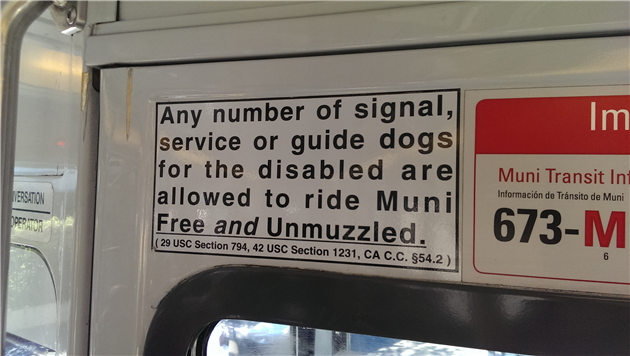
Google is going to start ranking pages based on facts. I'm game. This MUNI sign has always bothered me.
The highest capacity vehicle in the MUNI fleet has to be a two-car light rail vehicle. Capacity 436 people. The average weight of a person is 185 pounds. So we're looking at 80,660 pounds per rush hour train.
The lightest dog is a 1.4 pound Chihuahua named Ducky.
So at the absolute outside with no other passengers the limit is 57,614 dogs. I'm going to have to make some stickers...
Updated June 17, 2019: This is now broken for Nest/DropCam devices. It will still work for anything that has a web accessible image URL. Clint points out in the comments below that you can fix up the URL for Nest cams but it looks like you need to be logged into nest.com so it doesn't work from Apps Script. Google is also retiring Works with Nest because they're "...reimagining how technology and services can deliver simple and helpful experiences in your home..." which apparently translates to only working with Google Assistant. I'll update this post if I figure out a work around.
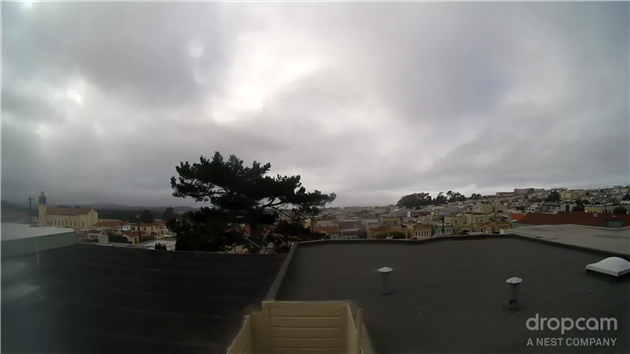
Here's an easy way to capture frames from a DropCam to Google Drive. This only works if you have a public feed for your DropCam.
Go to the public page for your DropCam (Settings -> Public -> Short URL Link) and then view source for that page. Near the top you can find the still image URL for your DropCam:
In Google Drive create a new Apps Script (If you don't already have Apps Script you can find it via Connect more apps...). Paste in the following code:
Replace the uuid parameter in the URL with the uuid from the still image URL for your DropCam. Note that the height parameter in the script has been changed to 1280 to get the largest possible image. A timestamp is being used to add a random cache busting parameter to the still image URL and is also used as the filename for the image.
The script will save the images to a folder called DCFrames - either create this folder in your drive or change this parameter to the desired folder.
Run the script and check that it's working. If everything looks good go to Resources -> Current project's triggers in the Apps Script editor. You can now set up a timer to save a frame as frequently as every minute (which I'm using to collect frames to make a daily time lapse movie). You can also ask Apps Script to send you an email when the script fails.
Updated 2015-07-01: DropCam is now Nest Cam - assuming that Nest keep the API going everything should keep working as above for both types of camera.
My Chromebook was stolen over the weekend. The good news is that I didn't lose anything given the cloud only nature of the device. The bad news was that I didn't really want to get a new one.
I loved the cost and the boot speed and being able to do nearly everything I needed to with a browser-in-a-box.
But the nearly was a deal breaker. I sometimes need to VPN and the Chromebook wouldn't. It just wasn't compatible with our flavor of VPN and I didn't want to buy another Chromebook on the off chance that Google would eventually fix this. I also have to use Skype (I'd rather not) and this isn't really possible on the Chromebook either. Imo.im was good while it lasted. IM+ is horrible.
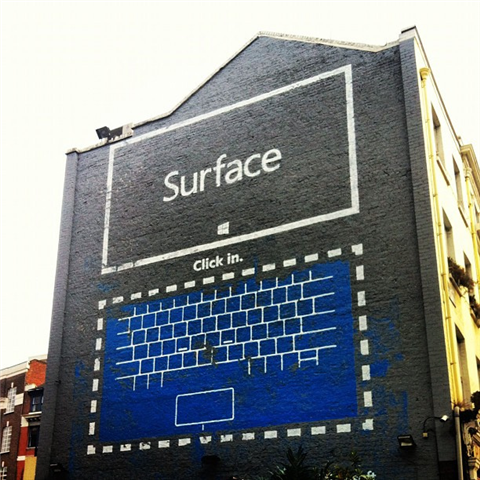
I've abandoned the Chrome dream and picked up a Surface Pro 3.